Sample profiles
A sample profile describes the material you're testing: its dimensions and the safety limits the machine must respect. You manage sample profiles on the Sample profiles screen.
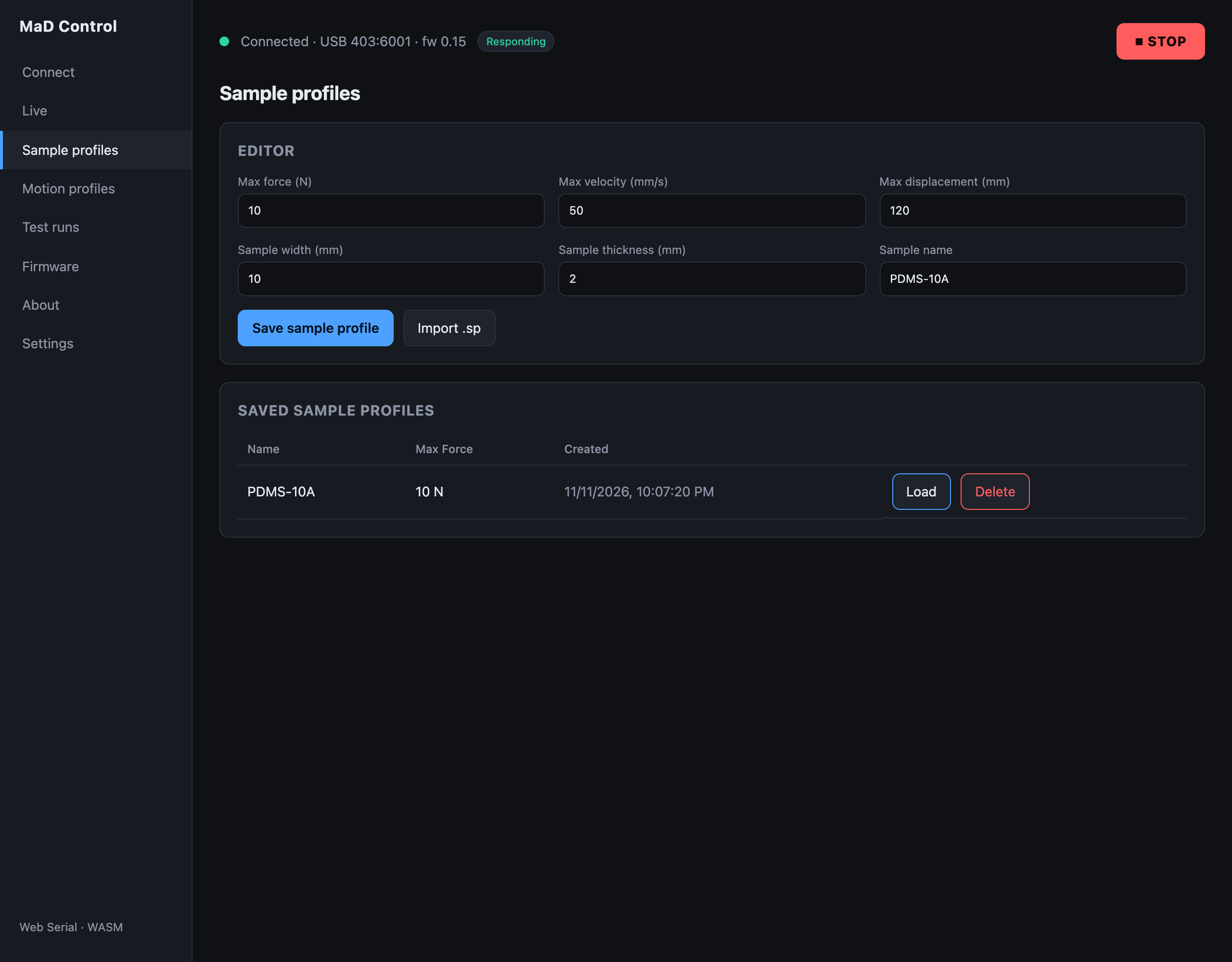
A sample profile is one half of a test — the other half is a motion profile. They're combined when you run a test.
Fields
| Field | Unit | Meaning |
|---|---|---|
| Max force | N | The test stops if sample force exceeds this |
| Max velocity | mm/s | Velocity ceiling for moves in this test |
| Max displacement | mm | The test stops if extension exceeds this |
| Sample width | mm | Cross-section width — used for stress (σ = F / (w·t)) |
| Sample thickness | mm | Cross-section thickness |
| Serial / name | — | An identifier for this sample/material |
Limits are enforced by the firmware
Max force and max displacement aren't just UI hints — the firmware stops the running test if the sample exceeds either, raising a warning notification. This protects both the sample and the machine.
The width and thickness define the cross-sectional area used to convert force into stress, and the gauge length (captured at run time) converts extension into strain — that's what produces the stress–strain curve in the run viewer.
Saving, loading, importing
- Save sample profile stores the profile in your data folder so it's available later and appears in the load list.
- The list of saved profiles lets you load a profile back into the editor or delete it.
- Import
.sploads a profile from a JSON.spfile (interchangeable with saved profiles). See the file formats reference. - There is nothing to send to the machine from here: when you start a test, the app writes the selected sample profile to the machine for that test.
- The save button shows Saved ✓ when it worked, and leaving with unsaved changes asks first.